Support Articles
Graphics Switching (Pop!_OS)
Many modern laptops with NVIDIA graphics cards have switchable graphics, which allows users to switch their primary GPU between the CPU's integrated graphics processor and the dedicated NVIDIA graphics card. The following System76 laptops have these switchable graphics capabilities:
- Adder WS (addw1 and newer)
- Bonobo WS (bonw15)
- Galago Pro (galp5 - NVIDIA models only)
- Gazelle (gaze14 and newer)
- Kudu (kudu6)
- Oryx Pro (oryp4 and newer)
- Serval WS (serw13 and newer)
Pop!_OS includes utilities (system76-power) for switching between these modes, which you can learn more about below.
COSMIC Desktop
The COSMIC desktop is designed to run in hybrid graphics mode and does not have a graphical way to change modes. This is NVIDIA's recommended approach to maximize GPU performance for the applications that need it, while saving power when no applications are running on the dedicated GPU.
Many applications that benefit from a dedicated GPU will launch on the dGPU automatically (as defined in their launcher files). To do so manually, right-click the icon in the application library or the dock and choose the GPU you want to use. You can check what processes are running on the dGPU using the battery applet or the nvidia-smi command.
Graphics modes
Integrated
Integrated graphics mode uses the integrated GPU only and turns off the NVIDIA GPU. This mode uses less power, leading to a longer battery life and less fan noise.
NVIDIA
NVIDIA graphics mode uses the discrete NVIDIA GPU only. This provides a better graphical experience, but reduces battery life. Most external display ports on System76 laptops are connected to the NVIDIA GPU only. (Some models, such as the Gazelle, may also have external ports connected to the integrated GPU.)
Hybrid
Hybrid graphics mode uses both the integrated GPU and the discrete NVIDIA GPU. Applications will use the integrated GPU unless explicitly requested to use the discrete GPU.
Vulkan applications must be launched with this command to be rendered on the dGPU (NVIDIA):
__NV_PRIME_RENDER_OFFLOAD=1 <application>
GLX applications must be launched with this command to be rendered on the dGPU (NVIDIA):
__NV_PRIME_RENDER_OFFLOAD=1 __GLX_VENDOR_LIBRARY_NAME=nvidia <application>
Hybrid graphics mode is available on 19.10 and later.
Compute
Compute graphics mode uses the integrated GPU for all rendering. The NVIDIA GPU is left available, allowing it to be used as a compute node.
Switch graphics
Pop!_OS by System76 includes the system76-power package, which includes the ability to switch between integrated, NVIDIA, and hybrid graphics modes.
From GNOME Desktop
Click the system menu in the top right corner of your screen to access graphics switching.
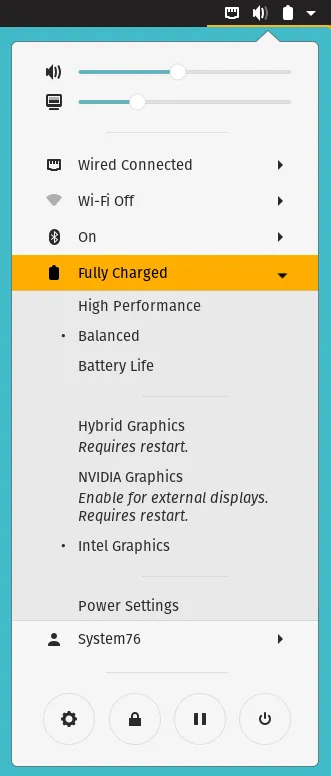
Click on NVIDIA, Integrated, Hybrid, or Compute depending on your use case.
Once you select a mode, you will be prompted to reboot.
From the command line
If you are not using the GNOME Desktop Environment, you can use the system76-power command line tool. You can see the options with this command:
system76-power help
For seeing which graphics mode the system is using:
sudo system76-power graphics
For switching to NVIDIA graphics:
sudo system76-power graphics nvidia
For switching to integrated graphics:
sudo system76-power graphics integrated
For switching to hybrid graphics:
sudo system76-power graphics hybrid
For switching to compute mode:
sudo system76-power graphics compute
Sources
The source code for the system76-power utility and the GNOME Shell extension can be found on GitHub: